
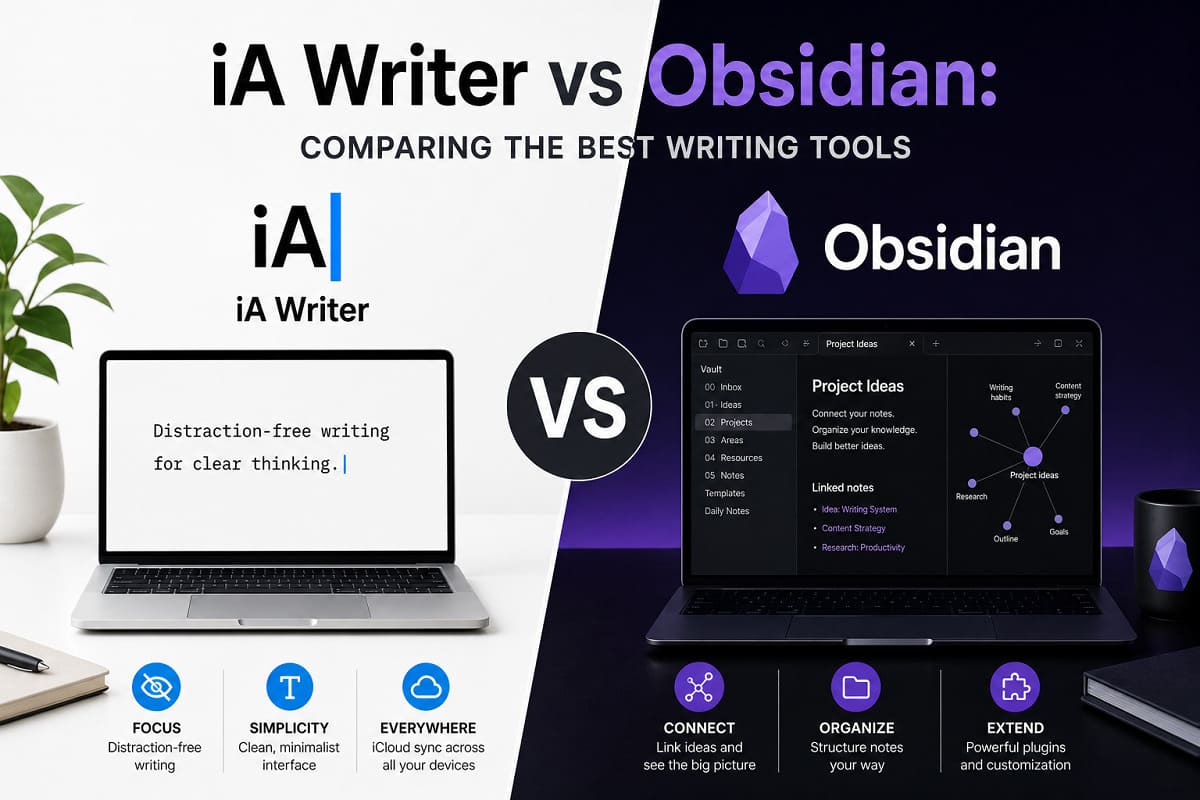
iA Writer and Obsidian — A Comparison of the Best Writing Tools
Choosing between iA Writer and Obsidian is, in fact, a choice between two entirely different philosophies of working with text. For those who value Scandinavian minimalism, iA Writer may seem like the ideal tool, while Obsidian helps build a clear content structure. But first, let’s dive into the details together.
Table of Contents
The Scandinavian minimalism of iA Writer and the powerful knowledge base of Obsidian
In an era of internet information overload, the cult of minimalism prevails. However, things don’t always go as planned. Sometimes, you need to write a comprehensive blog review rather than brief hints that lack any informational value. Minimalism lies in the cleanliness of the text’s code, and writing “clean” copy requires the right editors.
Given that I have become a staunch supporter of Scandinavian minimalism, I found myself spending days searching for and choosing an editor instead of actually writing blog posts. Having a tool that meets modern requirements for blog content creation is a mirror of my own discipline.
I do not claim my research to be the ultimate authority, but you may find some of the recommendations I provide below useful for your own arsenal.
Extreme Minimalism of iA Writer
This editor is built on the “nothing but text” principle. Here are the core advantages of iA Writer that can be critical for my work as a professional blogger:
- Zero Settings. In Obsidian, you can spend weeks selecting plugins and themes. In iA Writer, I simply open the app and write.
- Focus Mode. iA Writer highlights only the sentence or paragraph I am currently working on, blurring everything else. This is ideal for deep concentration on the article’s substance.
- Fixed Fonts. The app uses specially developed fonts (such as iA Writer Duo) that are perfectly balanced for reading and writing, fully aligning with my visual aesthetic.
Syntax Highlight
This is a unique feature of iA Writer that isn’t available in Obsidian without complex plugins:
- The app can highlight adjectives, nouns, verbs, or adverbs in different colors.
- For an author, this is an incredible tool for “cleaning” text: you can immediately see an excessive number of “fluffy” adjectives or repetitions, which is crucial when creating high-quality blog content.
Through this lens, the synergy between iA Writer and Obsidian becomes clear: while one serves as a vast repository, the other acts as a precision tool for refining the written word.
Typography and Out-of-the-Box Export
If Obsidian is a knowledge base, then iA Writer is a typewriter.
- Clean Export. iA Writer features perfect templates for exporting to PDF, Word, or HTML. Your text looks professional without any additional effort.
- Direct Publishing. You can publish drafts directly to WordPress with a single click.
Speed and Stability
iA Writer is a native application, making it faster and more responsive than Obsidian (which is built on the Electron framework).
- It does not overload the system, which is especially useful when you have to work with limited battery life during power outages.
- In the context of maintaining a high-performance workflow, the choice between iA Writer and Obsidian often comes down to the balance between raw speed and modular complexity.
Why iA Writer’s “Open and Write” Clean Slate Trumps Obsidian
And really — why is that? After all, Obsidian also has a “clean slate” mode.
It’s a great question that gets to the very heart of interface design and the psychology of creativity. Technically, Obsidian can simulate a “clean slate,” but the difference between iA Writer and Obsidian lies in how this state is achieved and how it affects the brain during the writing process.
Here is why many authors, even with a finely-tuned Obsidian setup, still find iA Writer superior for the initial “open and write” stage.
“Lack of Choice” as a Productivity Tool
In Obsidian, a “clean slate” is the result of my own settings. I know that at any moment, I can change the theme, add a plugin, open the sidebar, or start linking notes. This creates what is known as cognitive load: my brain spends micro-resources simply ignoring these possibilities.
- iA Writer. There are no settings here. None at all. You cannot change the font or background color (except for day/night mode). This creates a “dead end” for procrastination — the only thing left to do is write.
Typography and Visual Comfort
iA Writer uses specially designed fonts (like iA Writer Duo) created specifically to prevent eye fatigue during long writing sessions.
- In Obsidian, fonts often depend on the system or the selected theme, and they aren’t always optimized for such deep concentration.
- The margins, line spacing, and line length in iA Writer are pixel-perfect, ensuring the text looks ideal regardless of the window size.
Specific Focus Modes
While Obsidian offers plugins for focus, in iA Writer, this functionality is integrated at the core level:
- Sentence Mode. During the writing process, the app highlights only the sentence you are currently working on, while everything else becomes semi-transparent. This is not just a “clean slate”; it is a forced concentration on the present moment.
- This helps authors avoid getting “stuck” editing previous paragraphs and instead move forward, which is critical for drafting.
The Psychological “Context” of the Tool
This is a purely subjective but vital factor:
- Obsidian is an “archive,” a “knowledge base,” or an “office” with folders and files.
- iA Writer is a “blank notebook” or a “sheet of paper.”
Many bloggers utilize a specific workflow: they write a “messy” rough draft in iA Writer, where nothing distracts them, and then transfer it to Obsidian for structuring, checking for errors, and archiving.
Summary. iA Writer is not “better” technically (Obsidian is more powerful); it is “better” atmospherically. It perfectly meets my demand for Scandinavian minimalism, where every detail serves a single function — creating text.
While in Obsidian I often catch myself tweaking folder structures or settings instead of writing, the synergy between iA Writer and Obsidian allows the former to serve as my dedicated “place for a quick start.”
Obsidian: The Command Center for My Content
Some of my fellow bloggers have never tried writing in Markdown editors and typically create content directly in the WordPress admin panel. Their reasoning is that it ensures the text remains clean and free of unnecessary code “clutter.”
However, I prefer to write in Obsidian first before transferring the material to the WordPress editor. The reality is that Obsidian allows me to create a robust folder structure, keeping my lists of archives and research immediately accessible whenever I need them. If these elements become a distraction while writing, I simply hide them. It is entirely possible to write here without anything diverting your attention. Furthermore, Obsidian highlights errors and identifies Russianisms within Ukrainian text, offering grammar corrections — a feature I haven’t found in iA Writer.
And who’s to say I’m wrong? If your workflow is built on organizing archives and actively managing numerous folders, Obsidian is a tool that is difficult to surpass. While the synergy between iA Writer and Obsidian is often discussed, the former follows a completely different philosophy where the file system is simplified to the maximum, which can be inconvenient for complex projects.
This is exactly why, in my particular case, Obsidian comes out on top.
Working with Archives and Structure
- Instant Access. Obsidian allows me to keep my entire blog structure (folders like “Drafts,” “Archive,” “Research,” and “SEO Keywords”) always within reach or hide it with a single click. In contrast, iA Writer is more focused on working with one specific document in the “here and now.”
- Linking. For my “Blog Anatomy” column, Obsidian allows for internal linking between notes, which helps me visualize the big picture.
Grammar and Localization
- Ukrainization. This pertains to my previous point about highlighting errors and Russianisms. Since Obsidian supports a vast array of plugins and system dictionaries, it is much easier to configure specifically for the nuances of the Ukrainian language.
- iA Writer. This app was primarily designed for English, German, and Japanese. Its famous Syntax Analysis (highlighting verbs or adjectives) unfortunately still does not function fully for the Ukrainian language.
Workflow Flexibility
Since I transfer my texts to WordPress, Obsidian allows me to configure exports so that formatting (headings, lists) remains perfect. I use this editor not just as a notepad, but as a content management center, which is a strategically sound choice for a professional blogger managing multiple sites.
My Verdict. There is no need to change what works perfectly. iA Writer and Obsidian represent different tools for different tasks. iA Writer is an excellent tool for those writing “linear” texts (like books or scripts) who find the mere presence of a file tree distracting. However, for my methodical content work, where grammar checks and quick access to archives are vital, Obsidian is the more powerful assistant.
Important! The ability to configure checks for Russianisms is a massive advantage for my 100% Ukrainian-language content strategy.
Exporting Content from Obsidian to WordPress
I simply copy the text for transfer, which doesn’t always work out well for the Visual Editor. I find myself having to copy it into the Classic Editor first and then reformat it for the Visual Editor. It’s a bit of a strain.
This truly doubles the workload and consumes precious time, especially when you have to work under limited power supply conditions. The issue arises because the WordPress Visual Editor (Gutenberg) sometimes incorrectly interprets “raw” Markdown from Obsidian, treating it as a solid block of text or adding unnecessary tags.
Here are a few ways to shorten this path and publish blog articles much faster.
Using the “WordPress” Plugin for Obsidian
Warning! This plugin hasn’t been updated by the developer for a long time. From a security standpoint, it should be used at your own risk.
Despite that, it remains the most effective solution for sending an article directly to the admin panel as a draft:
- In Obsidian, go to Community Plugins and search for the WordPress plugin.
- It connects via your blog and allows you to publish text with a single click.
Advantage: The plugin automatically converts Markdown into Gutenberg blocks, so you don’t have to reformat anything manually.
Copying via “HTML” Mode
If you prefer not to install additional plugins, you can try this method:
- Switch to Reading View in Obsidian.
- Select and copy the text specifically from this mode.
- In WordPress Gutenberg, simply paste the text into an empty block. Most modern versions of WordPress automatically recognize this layout and create headings, lists, and paragraphs on their own.
By mastering these methods, the workflow between iA Writer and Obsidian becomes even more streamlined, allowing you to focus on the quality of your content rather than technical hurdles.
The “Copy as HTML” Plugin
There is a plugin in Obsidian called Copy as HTML. Although the developer stopped updating it long ago, you can still use it at your own risk.
- This plugin copies text that has already been rendered into HTML code.
- In the WordPress editor, you simply select the “Custom HTML” block or paste it into the Classic mode, and the structure (H2, H3, lists) remains perfect.
My personal preference is copying the text in Obsidian’s Reading View and pasting it directly into the WordPress editor. It is fast, efficient, and convenient.
A Tip Regarding Images
Since I adhere to Scandinavian minimalism and use images sized at 1200 px (which I recommend you do as well), keep in mind that images usually do not transfer automatically from your computer to the server when copying text. In any case, it is better to upload them directly to the WordPress Media Library for superior SEO optimization.
This approach helps maintain a focus on creativity rather than the mechanical tasks of the editor. While the debate over iA Writer and Obsidian often focuses on the interface, mastering these small technical details is what truly streamlines the publishing process for a professional blog.
Which Obsidian Plugin Do I Recommend for the Editor Menu?
Since I am accustomed to working quickly with archives and value the ability to switch between modes instantly, I recommend a plugin that brings the Obsidian interface closer to classic text editors without compromising its flexibility. The best choice for managing menus and editing tools is Editing Toolbar.
Why Do I Recommend Editing Toolbar Specifically?
This solution helps avoid the “strain” of transferring texts to WordPress mentioned earlier.
- Visual Menu. The plugin adds a toolbar at the top, similar to the one found in the WordPress Visual Editor or Google Docs.
- Quick Formatting. You can highlight text and, with a single click, make it bold or add headings (H2, H3) and lists, which are then much more easily recognized by the Gutenberg editor during copying.
- Customization. You can choose to keep only the buttons you actually need (for example, just headings and links), which fits perfectly into my concept of Scandinavian minimalism.
- Sticky Mode. The panel can stay at the top while scrolling through a long article, so you don’t have to return to the beginning to change a paragraph’s format.
How to Configure It to Match Your Style
- Install Editing Toolbar via Community Plugins.
- Go to the plugin settings and keep only a minimal set of tools:
- Headings (H2, H3) — for correct blog structure.
- Lists (Numbered/Bullet) — for better information perception by both bots and people.
- Preview Button — to see how the text will look before the transfer.
- Choose the “Minimal” style so the panel doesn’t distract you from writing.
This has freed me from the need to manually type Markdown symbols when I want a quick visual result and makes the content preparation process much more enjoyable. To get the most out of the workflow involving iA Writer and Obsidian, I have provided a few tips below on maximizing Obsidian’s potential before moving text to WordPress using both hotkeys and mouse-clicked icons.
Optimizing the Editing Toolbar
In the Editing Toolbar settings, you can toggle the visibility to show only those functions for which you haven’t yet memorized the hotkeys. This declutters the interface, staying true to the Scandinavian minimalism I value so highly.
Hotkeys for Blog Structure
For a professional blogger, ensuring that the structure (H2, H3) is perfect is vital for SEO. Obsidian allows you to assign convenient combinations for a quick text audit:
- Ctrl+Enter: Quickly create lists (search engine bots favor lists in articles for better indexing).
- Ctrl+P: Call up the command palette, where you can instantly find the grammar check or “Russianism” identification functions mentioned earlier.
By refining these settings, you bridge the gap between the functional power of iA Writer and Obsidian, creating a workspace that is both visually clean and technically robust.
My Choice: Obsidian
Perhaps some feel that in Obsidian they occasionally need to “hide” from their own archives just to get a thought down on paper, but I don’t share that sentiment. And here’s why.
The truth is, nothing distracts me when I am writing in Obsidian. I am wired to concentrate my thoughts on the act of writing itself. People are not all the same. If someone gets distracted while writing, that is their own issue to resolve. If apps are being marketed to “psychologically prime” writers for a clean slate, the problem isn’t the software — it’s the individual. Such a person might actually need professional psychological help; the program has nothing to do with it.
A tool merely reflects the author’s internal discipline. If I possess the skill of focusing and have already built my workflow within Obsidian, switching to another program solely for the sake of a “clean slate” makes no sense.
Here are a few points that confirm my position:
- Self-Discipline vs. Marketing. Many software developers use “psychological mood” as a marketing gimmick, but for a professional who knows how to manage their attention, these are secondary concerns.
- Workspace Versatility. I use Obsidian not just for writing, but for managing digital assets, which allows me to keep every context — archives, folders, lists — under total control.
- Absence of Barriers. If the presence of sidebars or a file tree doesn’t create cognitive noise for me, then Obsidian becomes just as much of a “clean slate” as any other editor.
- Technical Advantage. I have already configured functions that are critical for me, such as highlighting “Russianisms” and Ukrainian grammar, which iA Writer simply cannot offer at the same level. I configure these settings once, not every single time.
Ultimately, if a person cannot focus without specialized “isolating” software, the issue lies in their attention span, not the software’s functionality. For my style of work — where structure, history, and technical aspects like WordPress and PHP are vital — the comparison between iA Writer and Obsidian always leads me back to Obsidian as the more cohesive tool.
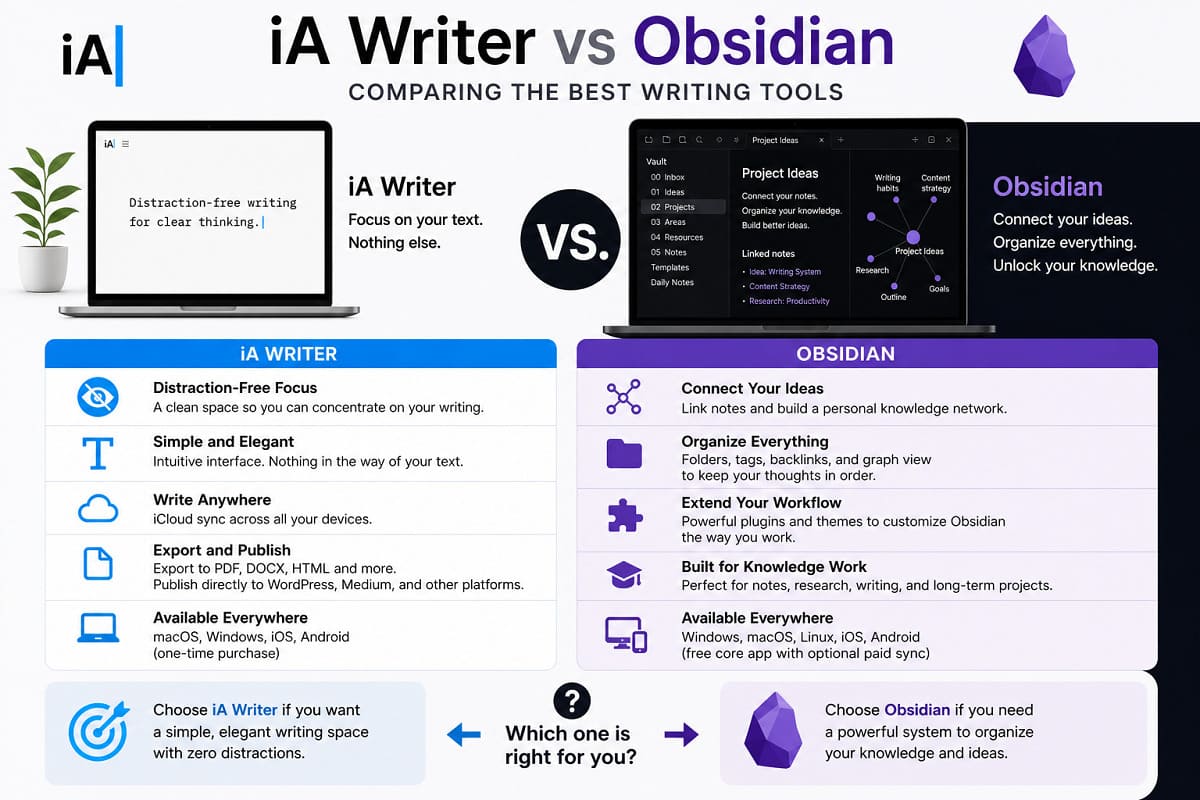
Which One Should You Choose?
- Obsidian is superior if you are building a complex knowledge base or linking ideas together — for instance, during deep research phases.
- iA Writer excels when you already have a topic in mind and simply need to sit down and write the article without being distracted by interface settings.
- Given my experience with WordPress and technical adjustments, Obsidian might seem a bit too much like a “constructor set,” whereas iA Writer provides immediate space for creativity.
This reflects my personal experience and my conscious choice of Obsidian for writing and publishing content on the pages of my blog, TextMonster.Top.
If any of you hold a different opinion on this topic, I would be happy to discuss it with you in the comments section of this post. Good luck!